

T A I L O R
An Outfit & Wig Manager for Skyrim SE/AE
(formerly known as Wiggy)
━━━━━━━━━━━━━━━━━━━━━━━━━━━━━━━━━━━━━━━━━━━━━━━━━
Overview
Dress any NPC in custom outfits and wigs — in real time.
No console commands. No ESP files. No patches.
Create outfits from any combination of armor mods, assign wigs from any hair mod, change hair colors from 173 presets or custom RGB — all with live preview on the NPC. Your choices persist across saves automatically.
Tailor combines a full outfit manager with a wig and hairstyle manager in one unified interface. One hotkey, one UI, two tabs.
Situational outfits let you assign different looks based on context — adventuring, town, home, and sleep — and Tailor swaps them automatically.
While you are targeting an NPC and have the interface open, the NPC is frozen in place (not frozen in time) to prevent them from wandering off. This is normal behavior.
Note: Released as a unified build that works on Skyrim AE/SE/VR. The VR version hasn't been tested and PRISMA UI doesn't have an official release for support for VR. There is an Alpha for VR being worked on.
New: Compatibility Settings
Tailor v1.5.0 adds a [Compatibility] section to Tailor.ini located at Data/SKSE/Plugins/Tailor.ini
[Compatibility]; RefreshMorphs: After applying an outfit, trigger a NiNode update to let
; body morph mods (OBody NG, AutoBody, CBPC) re-apply their morphs.
; Set to 0 if you experience visual glitches with RaceMenu overlays.
; Default: 1 (enabled)
RefreshMorphs=1
RefreshMorphs (default: enabled) — When Tailor changes an NPC's outfit, it now sends a signal that tells body morph mods like OBody NG and AutoBody to re-apply their presets. This fixes the long-standing issue where outfit changes would reset body shapes to default. If you experience visual glitches with RaceMenu overlays after updating, set RefreshMorphs=0 to disable this feature.
Note: If you are updating from a previous version, delete your existing Tailor.ini to let the mod regenerate it with the new section, or manually add the [Compatibility] block shown above.
See Changelogs above for update details
━━━━━━━━━━━━━━━━━━━━━━━━━━━━━━━━━━━━━━━━━━━━━━━━━
Features
Outfits
- Custom Outfit Builder — Create outfits from any combination of armor pieces across all your mods, with live preview as you add/remove items
- Live Outfit Preview — See every outfit equipped on the NPC in real time before you commit
- Situational Outfits — Assign different outfits for Adventuring, Town, Home, and Sleep — Tailor auto-swaps based on context
- Outfit Categories — Organize outfits into custom categories (up to 7 per sex with 3 more hard-coded categories) for easy browsing
- Outfit Library — Browse, search, edit, and delete all your saved outfits in one place
- Armor Type Badges — Each armor piece shows Heavy, Light, or Clothing classification
Wigs & Hair
- Live Wig Preview — See every wig equipped on the NPC in real time before you commit
- Hair Color System — Change any NPC's hair color from 173 named presets or custom RGB values, with live preview
- 8 Style Categories — Long, Updo, Ponytail, Short — for both female and male NPCs
- Full Mod Scanner — Scans all installed mods for hair-slot items, no manual setup needed
- Wig Library — Build and organize your personal wig collection across categories
Shared
- Persistent Assignments — All outfit, wig, and hair color choices save with your game and re-apply automatically on load
- Automatic Cell Re-equip — NPCs keep their assigned outfits, wigs, and hair colors when entering/leaving cells
- Plugin Blacklists — Separate blacklists for outfit armor mods and wig mods to keep scanners clean
- Zero ESP Footprint — Everything lives in the SKSE DLL — no plugins, no patches, no load order worries
- Load-Order Safe — Items tracked by plugin name + FormID, surviving load order changes
- Auto-Cleanup — Uninstall a mod and Tailor silently removes its entries from your libraries
- NFF Compatible — Works with Nether's Follower Framework managed actors (obviously don't use its outfit features)
- Modern In-Game UI — Sleek dark-fantasy interface powered by Prisma UI with tabbed navigation
━━━━━━━━━━━━━━━━━━━━━━━━━━━━━━━━━━━━━━━━━━━━━━━━━
Requirements
- SKSE64
- Address Library for SKSE Plugins
- Prisma UI — provides the in-game HTML interface
- Media Keys Fix SKSE — required by Prisma UI
- One or more armor mods and/or wig mods to dress your NPCs with
━━━━━━━━━━━━━━━━━━━━━━━━━━━━━━━━━━━━━━━━━━━━━━━━━
Installation
- Install the four requirements listed above.
- Install Tailor using your mod manager (MO2, Vortex, etc.).
- Launch the game and have fun!
- MO2 users: remember to copy any config files generated in your Overwrite folder to Tailor's folder after your first session.
That's it. No ESP to activate, no MCM to configure.
Tips
- Dragging a window by its title bar lets you reposition it for a better view of the NPC you're working with.
- The Add Wigs screen lets you click any wig name to live-preview it on the targeted NPC — helpful for sorting wigs into the right categories.
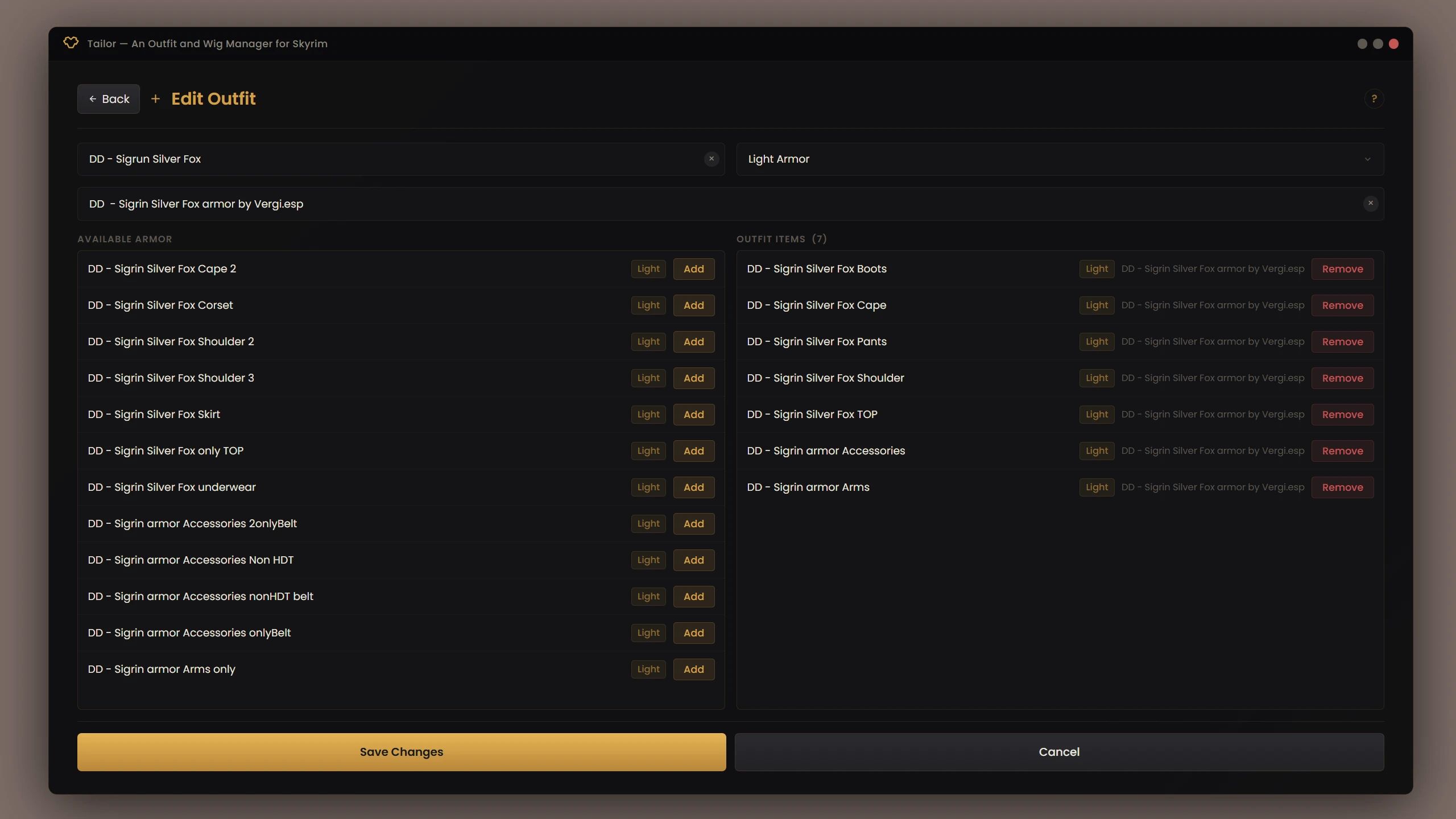
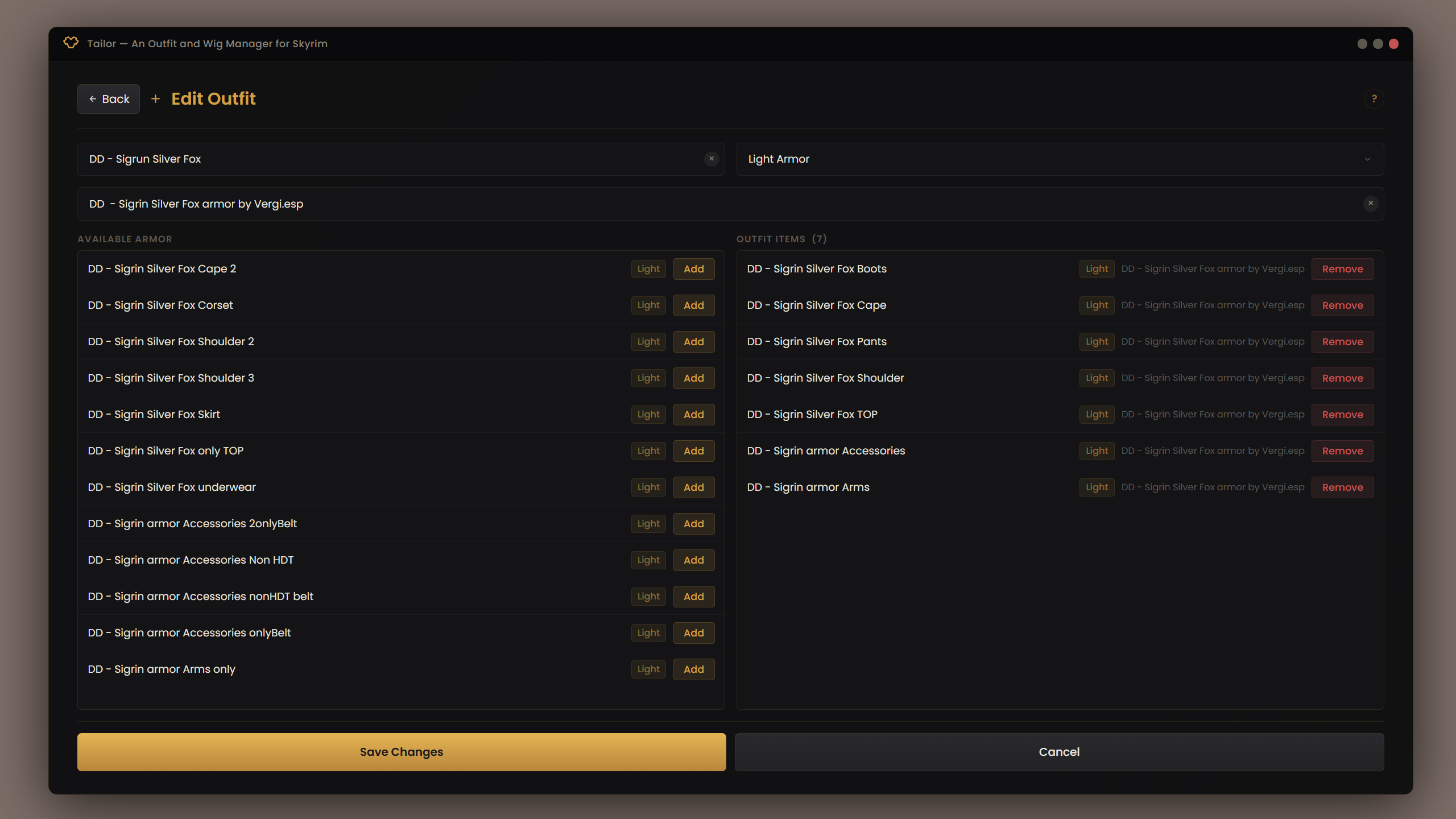
- On the Create/Edit Outfit screen, armor pieces equip and unequip on the NPC in real time as you build the outfit.
━━━━━━━━━━━━━━━━━━━━━━━━━━━━━━━━━━━━━━━━━━━━━━━━━
Migrating from Wiggy
If you previously used Wiggy, Tailor includes all of its functionality. Your existing wig library and assignments carry over automatically — Tailor reads from the same Data/SKSE/Plugins/Wiggy/ folder.
- Install Tailor
- Remove WiggyNG.dll and WiggyNG.ini from your SKSE plugins folder (MO2 - open the Wiggy mod in explorer and delete the two files, Vortex - the same)
- Your wig library, assignments, hair colors, and blacklist are preserved
━━━━━━━━━━━━━━━━━━━━━━━━━━━━━━━━━━━━━━━━━━━━━━━━━
How to Use
Controls
Open / Close Tailor: Shift + Z
While cycling outfits or wigs:
- Left Arrow or A — Previous (or click with mouse)
- Right Arrow or D — Next (or click with mouse)
- Enter — Confirm selection (or use mouse on buttons)
The hotkey can be changed in Data/SKSE/Plugins/Tailor.ini using DirectX scan codes.
Quick Start
- Look at an NPC with your crosshair.
- Press Shift+Z to open Tailor. The NPC's name appears in the header and the NPC freezes so you can work.
- Use the Outfits tab to dress them in custom outfits, or switch to the Wigs tab for hairstyles.
- Press Shift+Z to close. The NPC unfreezes and resumes normal behavior.
You must be looking at an NPC when you open Tailor. If no NPC is targeted, the UI will prompt you to aim at one.
━━━━━━━━━━━━━━━━━━━━━━━━━━━━━━━━━━━━━━━━━━━━━━━━━
The Screens
Main Screen
The home screen shows two tabs: Outfits (default) and Wigs. Both share a target header displaying the NPC's name.
Outfits Tab:
- Category grid — shows your outfit categories for the NPC's sex, with outfit counts
- Reset to Default — removes the assigned outfit and restores the NPC's original look
- Situations — opens Situational Outfits screen
- Manage Outfits — opens the Outfit Library
Wigs Tab:
- Category grid — 4 wig style categories for the NPC's sex (Long, Updo, Ponytail, Short) with wig counts
- Return to Default — removes the assigned wig and restores the NPC's original hair
- Hair Color — opens the Hair Color screen
- Manage Wigs — opens the Wig Library
━ ━ ━ ━ ━ ━ ━ ━ ━ ━ ━ ━ ━ ━ ━ ━ ━ ━ ━ ━ ━ ━ ━ ━ ━
Dressing Room — Outfit Cycling
Click any outfit category on the Main Screen to enter the Dressing Room.
- The selected outfit is live-previewed on the NPC — you see it equipped in real time
- Use the arrow buttons (or A/D keys) to browse outfits in the category
- Shows "X of Y" counter for your position in the category
- Set Outfit — saves the outfit to the NPC, persists across saves
- Cancel — reverts to whatever the NPC was wearing before
- Reset to Default — restores the NPC's original outfit
Create / Edit Outfit
Build outfits from any combination of armor pieces across all your installed mods.
- Left column — Available Armor: Select a mod from the plugin dropdown, then browse or search its armor items. Click any item to add it to the outfit — it equips on the NPC instantly.
- Right column — Outfit Items: Shows all pieces currently in the outfit with armor type badges (Heavy / Light / Clothing). Click to remove.
- Name your outfit, pick a category, and save. A category is required.
Manage Outfits — Library
Access from Main Screen > Manage Outfits.
- Browse all saved outfits, filter by category or search by name
- Edit — opens the outfit in Create/Edit mode to add or remove armor pieces
- Delete — removes the outfit (shows which NPCs are currently wearing it before confirming)
Outfit Categories
Access from Main Screen > Manage Outfits > Categories.
- Create custom categories (up to 7 per sex) to organize your outfits however you like
- Rename or delete categories
- Each sex (Female / Male) has its own independent category list
Situational Outfits
Access from Main Screen > Situations. Automatically equip different outfits based on what the NPC is doing.
Four situations:
- Adventuring — active combat and exploration
- Town — in populated areas
- Home — inside the NPC's residence or player home
- Sleep — sleeping or resting
For each situation, click Dress to cycle through outfits and assign one. When the NPC's situation changes in-game, Tailor automatically swaps to the appropriate outfit. Clear individual situations or all at once.
━ ━ ━ ━ ━ ━ ━ ━ ━ ━ ━ ━ ━ ━ ━ ━ ━ ━ ━ ━ ━ ━ ━ ━ ━
Hair Dresser — Wig Cycling
Click any wig category on the Main Screen to enter the Hair Dresser.
- The selected wig is live-previewed on the NPC in real time
- Use arrow buttons or A/D keys to browse wigs in the category
- Set Wig — saves the wig to the NPC, persists across saves
- Cancel — reverts to whatever the NPC was wearing before
- Return to Default — restores the NPC's original hairstyle
Manage Wigs — Library
Access from Wigs Tab > Manage Wigs.
- Left panel: All 8 wig categories with counts. Click one to view its contents.
- Right panel: Wigs in the selected category.
- Search box filters by name
- Move to... dropdown reclassifies a wig to another category
- X button removes the wig from the library
- Add from Mods button opens the Add Wigs screen
Add Wigs from Mods
Access from Wig Library > Add from Mods. Scans all installed mods for hair-slot items.
- Search and select a mod from the plugin dropdown (type-ahead search)
- Filter the wig list by name
- Click a row to live-preview that wig on the NPC
- Category pills (Long, Updo, Ponytail, Short) — choose which category the wig goes into
- Add / Remove buttons — add to library or undo
- Set All — assign every wig from the current mod to one category at once
- Add All footer — bulk-add all unadded wigs to their selected categories
Hair Color
Access from Wigs Tab > Hair Color. Change any NPC's hair tint using the game's native hair color pipeline.
- 173 Named Presets — a curated palette displayed as colored swatches in a scrollable grid. Hover to see names like "Nordic Steel," "Crimson Shadow," or "Snow Veil."
- Live Preview — click any swatch and the color applies instantly
- Custom RGB — enter R, G, B values (0-255) for any color not in the presets
- Reset to Default — restores the NPC's original hair color
Hair color works independently of wigs — set a color on the NPC's default hair, on a wig, or both.
Plugin Blacklists
Tailor has two separate blacklists:
- Outfit Blacklist (via Manage Outfits) — hides non-outfit armor mods from the Create Outfit armor browser
- Wig Blacklist (via Manage Wigs) — hides non-wig mods from the Add Wigs scanner
Toggle mods on/off, search by name, or clear all entries.
━━━━━━━━━━━━━━━━━━━━━━━━━━━━━━━━━━━━━━━━━━━━━━━━━
How It Works
Outfits — Your custom outfits are saved to Data/SKSE/Plugins/Tailor/outfits.json. Categories in library.json. They persist across all saves and new games.
Wig Library — Your organized wig collection is saved to Data/SKSE/Plugins/Wiggy/library.json. Persists across all saves and new games.
Assignments — NPC outfit, wig, and hair color assignments are saved to their respective assignments.json files. When you load a game, Tailor re-equips everything automatically. When an NPC enters a loaded cell, their outfit, wig, and color are re-applied.
Cross-System Sync — When an outfit change would strip a wig (because outfits can override the hair slot), Tailor automatically re-equips the wig after the outfit is applied. Hair colors are re-applied with timed delays to beat the engine's appearance restoration.
Auto-Cleanup — If you uninstall a mod, Tailor automatically removes its entries from both libraries the next time the game loads.
━━━━━━━━━━━━━━━━━━━━━━━━━━━━━━━━━━━━━━━━━━━━━━━━━
Troubleshooting
UI doesn't appear
Make sure SKSE, Address Library, and Prisma UI are all installed correctly. Check SKSE/Tailor.log for errors.
"Target an NPC" message
Aim your crosshair directly at an NPC before opening the UI.
No mods in the plugin dropdown
You need at least one mod installed that adds armor items (for outfits) or hair-slot items (for wigs).
Wig doesn't appear on the NPC
The wig's source plugin may not be loaded. Check your load order.
Hotkey conflicts with another mod
Edit Data/SKSE/Plugins/Tailor.ini to change to a different key combo.
Hair color doesn't change
Some wig textures use pre-baked colors (non-grayscale diffuse). The game's hair tint shader multiplies the texture color by the hair color — if the texture is already colored, the tint has less visible effect. This is a limitation of the game's shader, not Tailor.
Outfit doesn't stick after cell change
Tailor re-equips on cell attach. If an NPC briefly flashes their default outfit, this is normal — the re-equip fires within a few frames.
NPC stuck frozen
This shouldn't happen — closing the UI always unfreezes the NPC. If it does, save and reload.
━━━━━━━━━━━━━━━━━━━━━━━━━━━━━━━━━━━━━━━━━━━━━━━━━
Typical Workflows
Dress an NPC in a custom outfit:
- Look at NPC > Shift+Z
- Tap an outfit category
- Cycle with arrows until you like one
- Click Set Outfit
Create a new outfit:
- Shift+Z > Manage Outfits > Create New
- Pick a mod from the plugin dropdown
- Click armor pieces to add them (they equip on the NPC in real time)
- Name the outfit, pick a category, click Save
Set up situational outfits:
- Shift+Z > Situations
- Click Dress next to a situation (e.g., Town)
- Cycle to the outfit you want and confirm
- Repeat for other situations
Assign a wig:
- Look at NPC > Shift+Z > Wigs tab
- Tap a wig category (e.g., "Long")
- Cycle with arrows until you like one
- Click Set Wig
Build your wig library:
- Shift+Z > Wigs tab > Manage Wigs > Add from Mods
- Search for a hair mod in the plugin dropdown
- Click wigs to preview, select a category pill, then click Add
- Use Set All if the entire mod belongs in one category
Change hair color:
- Look at NPC > Shift+Z > Wigs tab > Hair Color
- Click swatches to preview colors on the NPC
- Or enter custom R/G/B values and click Apply
━━━━━━━━━━━━━━━━━━━━━━━━━━━━━━━━━━━━━━━━━━━━━━━━━
Created by ColdSun
Built with CommonLibSSE-NG | Prisma UI | C++23
Comments (24)
Log in to post a comment.
I'm also coming from Nexus, very grateful for your mods, and also would like to let everyone know that the "followers get a random Obody preset on first game load instead of their assigned presets" issue isn't present in the latest version of Tailor (2.0), at least it hadn't happened so far for me, so this mod is now a permanent addition on my loadorder.
Thanks!
Glad you are enjoying it!
ColdSun Unfortunately, I was mistaken; the bug is still present. Hate to be the bearer of bad news, but I didn't want to leave misinformation here. Your mod will still stay active in my MO tho. I'll just won't use it on followers.
Pretty cool mod it's a lot more practical than like proteus and NFF's systems now we need something like this for the player.
Awesome mod man, definitely on my top 10 so far keep up the good work!
Thanks!
Brother thanks for this amazing mod, following you from the nexus mods, hope you get what you seek and deserve here and in your patreon, I subscribed for a few months as a token of gratitude.
Thank you so much for your support!
This quickly became my goto outfit mod. Works really well. Note: if you use another manager or NFF, make sure this mod is lower in the mod order (left pane for MO2 users) so it can overwrite them. Is there a way to target myself with this mod? I'd like to add player to the situational features of Tailor. Is it possible to add a "Combat" situation? I'm also looking into these in case I can assist.
Thank You.
I'm not sure if you saw my previous reply to you on Nexus, or if you're still planning to update this mod after that things happened. But I figured I'd try replying here anyway.
I've noticed that if the Situational Outfit I set up has fewer armor slots than what's in the follower's inventory, the follower automatically equips items from their backpack into the empty body slots.
For example, if I set Lucien's Situational Outfit to only have boots and a shirt (no gloves), he automatically equips the bracers from his backpack. It gets even worse if the follower has multi-slot armor like TAWOBA in their inventory.
I was wondering, could you add a feature that allows us to explicitly mark a body slot as "Empty" when editing an Outfit? This would let us specify exactly which slots should remain unequipped.
I will look into this. Its been a chaotic week or two so I'm still catching up.
man i thought ur gone and stop making mods , glad found u on this site
I've tried the latest version.
The follower still automatically equips items from their inventory into any empty body slots.
Also, I noticed that even if I set an Outfit for the follower, as soon as they switch cells, they revert back to wearing the armor from their inventory..
It really sounds like you have a mod conflicting with this one. Send me your Tailor log and I can take a look.
ColdSun Okay, I've taken a screenshot of the log. Hope it helps. Thanks.
DEMIAN Glad you are here!
ColdSun Well, it seems that the issue of followers automatically equipping backpack armor after switching cells is caused by NFF, which is really strange...
However, even when I started a new game without NFF, followers still equipped armor from their backpacks in empty body slots. Additionally, the feature to switch from Town Outfit to Adventure Outfit often doesn't work properly when I take my followers out into the wilderness.
I also noticed that if I use this mod alongside your 'Horde' mod, the series of issues I encountered seem to disappear. But if I use 'Tailor' on its own, these problems occur.
I've actually been looking for an NPC outfit-changing mod that allows followers to wear town outfits in cities, home outfits at home, and directly equip the armor from their backpacks when adventuring in the wild—this way, they can wear the gear I've enchanted and upgraded.
I've tried many outfit mods, and yours seems to be the closest to what I need. But for some reason, I keep encountering strange issues when using it, which is really sad...
Experiencing long-term per-actor degradation
Tailor 2.0 was used from the beginning of this playthrough. NPCs initially work normally, but after prolonged outfit and wig use they progressively stop responding. Wig preview may freeze on vanilla hair or an invisible mesh, and confirming the selected wig does not render it. Cell reloads sometimes restore it temporarily.
Eventually, Tailor reports “ResetOutfit: no original outfit found”, cannot restore the NPC’s valid vanilla outfit, and previously applied custom armor remains serialized after Tailor and its assignments are removed. Running resetinventory then leaves the NPC nude. At leat 4 long term followers now present this issue.
New NPCs still work, but may later develop the same failure. Version 2.1 did not improve the behavior.
Two reproducible hard freezes occurred while Tailor was processing Lydia, one of those four.
The first dump captured papyrus__Actor::SetOutfit using runtime outfit FF002E89, passing through SPID’s Outfits::SetOutfitActor::thunk and Outfits::Manager::ProcessSetOutfitActor, with Lydia’s BaseExtraList involved.
The second dump captured Character::sub_14028DBD0 followed directly by repeated Tailor frames: Tailor.dll+00A0A43, +00D0910, +00D1130, +004F7FD, +00CC2A0, and +00D11C0, again involving Lydia and her BaseExtraList. Great mod, can you help figure it out why this is happening?
https://pastebin.com/EJPn5JFJ
https://pastebin.com/Rk6kSGM9
https://pastebin.com/5hQ7vWWR
https://pastebin.com/bfgMvQLf
https://pastebin.com/y1r2GbTL
After much testing, I found Racemenu prevented me from using this mod properly. Wigs were fine, but any time i would attempt to cloth an NPC, the game would crash with BSLightingShader and BSDynamicTriShape errors, to name a few. I'm guessing it's the NiOverride part of it that's causing the conflict. Am i alone in not having them work together? It's the NiOverride i need for other mods to function.
What exactly does the “Random” tickbox do for situations? Thanks for the mod.
Allows you to add as many outfits to situation categories and then 1 time a day the NPC will change outfits from that category. They will never wear the same outfit twice (unless you only have 1 outfit in the category).
I'm sorry to make a new post, but for some reason I can't reply direct to ColdSun, I get a "Invalid Mention" error each time. ColdSun, you asked me to send my Tailor Log to you, would you want that sent to a specific site or location? As I said, I can't reply direct to you so I can't just copy - paste it in a reply to you. Thank you for your help, I'm sorry about the inconvenience.
No worries at all. Send it to heathbrown1187@gmail.com.
So, I absolutely love this mod, as I do all your mods, lol. Little bit of a learning curve, but nothing truly difficult even for one of my limited skills. I do have one issue or problem that I've not seen addressed yet, and it's probably something I've done wrong on my end. Every now and again I'll find a character who I've assigned a particular outfit to, let's say something like a blacksmith outfit I created, instead wearing one of the other outfits or, even more odd, wearing a mashup of two different outfit sets? Any suggestion on where I might have screwed things up? It doesn't happen all the time with every character I've set an outfit for, and it appears to be correctable by just reassigning the outfit back to them. Thanks in advance for any guidance.
Best to send me your Tailor log.
This is such a great idea/mod.. however on several occations I found that a hair style / color or outfit are suddenly copied to another follower. I sadly had to uninstall.
Sadly, you could have sent me some logs or something to help you out. I don't believe Tailor is doing this though. Its something on your end.
Hello, ColdSun.
Great mod this is, been using for a while now, I would like to thank you for it. Also, I remember seeing this on Nexus, if I'm not mistaken, but i had a problem with a dead NPC with an outfit assigned to it, so if i try to load a save near this NPC I got a repeatable CTD. I disabled Tailor, and then reload the same save, and it not crashed. I would like to ask if this was adressed before, anyway, thanks again for this.
ColdSun Is there anything I can do to avoid this kind of CTD, without having to disable the mod? Thanks for your time.
I responded to the wrong post before. I need your Tailor.log and Crash Log to determine what the issue is. I have not had this problem and can't recreate it.
ColdSun
Reproduction method: The first time it happened by chance while I was testing the possible outcomes of the Boethiah’s Calling quest. I moved Jenassa to the player, hired her, and then sacrificed her. She already had an outfit assigned before I moved her to my location.
In my experience with Tailor, NPCs moved this way initially keep their default outfit until the game is reloaded. I killed her before performing that reload, saved the game, and exited. When I loaded the save again, the game crashed immediately.
I did not have the logs from that first occurrence, so I repeated only the teleport-related part with the same NPC: I moved her to the player, killed her, saved the game, and the game crashed again when I reloaded the save.
https://pastebin.com/6FcaFw1m
https://pastebin.com/8FjfxEjV
ColdSun
I don't think I can post links here, I replied to you, but my comment it's now gone. How can I send you the logs?
I got the links. I'll take a look and get back to you soon.
Great, at first glance indeed my comment wasn't here, now I see it is. Thanks for your time.
stupid question how do you use it on your character, can you even use it on your character?
Only works on NPCs.
ColdSun I wanna thank you for sharing this and all your mods with us. All of them are well done, in mine opinion. I just would like to know if there are a way to transfer already created outfits from one category to another or do I have to create them again to assign them to a new category. Thanks.
At this time you have to manually create a new category and add the outfits to that category.
I love this mod. It makes setting outfits MUCH more convenient.
I was wondering if there was a way to randomly choose a Wig like you can with clothes. I couldnt find the option in game. Thank you.
Not yet. Although there is a "situation" for wigs.
Another question:
Is there an easy way to scale the UI/fonts of the app?
I'm running it on a 21:9 5K2K monitor, and the fonts are so small, so hard to read.
I'll look into that for the next version.
Thanks so much for the great tool.
Question: in MO2, after we installed new armor/outfit mods, and ran BodySlide to generate contents, do we need to keep the mods activated in order to use Tailor? If it still works, I would prefer to de-activate the armor/outfit mods to save total number of plugins installed, ie 254 ESM+ESP, 4096 ESLs
I'm using Tailor in combination with Boutique and wanted to ask if there are known incompatibilities? Specifically with the wig. For some reason the Wig randomly changes back to the default whenever I teleport between cells sometimes.
Sounds like you do indeed have a conflict. Look for mods that alter that NPC.
On my first playthrough, the Tailor UI worked perfectly. Now the dropdown in Outfit creation that let's you select if the outfit is heavy armor, light armor, clothing, etc. won't stay down long enough for me to make the selection.
I'm sure I'm done something wrong and would appreciate any guidance.
This mod is a dream! The ease of use, the customization, everything. One my current nickpick is I have two female followers with custom wig colours, and their colours will often bleed over to the other follower, either partially or completely.
This is a skyrim bug. You can't have the same wig on two followers in the same cell and expect it to retain the color. This is because the FormID of the Wig is the same. So when it sets the formID's color, it is setting the most recent one.
Hello CS ,before anything, thanks for the mod, it will, without any doubt turn into a permanent mod in most modlists.
For now, I have to say 1.7.0 freezes my game every time I use the option "choose mods" from clothes or wigs, same result, I do have the requirements installed and previous Tailor versions work fine, just not Obody friendly.
Thanks, I'll look into this.
ColdSun Just tried to delete skyrim's traces of Tailor on my games and the SKSE folders to install Tailor 2.0, but yet again, it works as usual, except when trying to peruse the mods for outfits, it freezes with no crash log or anything.
Can you explain how to do a proper, complete de-installation considering I used Wigs and every Tailor version from the nexus before, please?
I REALLY want this mod working, But I am clueless.
If you are using MO2, make sure you delete anything from the overwrites folder.
Hello, I am having some trouble getting Tailor to work properly. The first few NPCs whose outfits I modify behave as expected, but as I continue adding more NPCs to the list, things start to go wrong.
After modifying the outfits of around the fourth or fifth NPC, they begin to ignore the changes. The custom outfits are still saved in the mod’s in-game menu, but the NPCs only wear them until I leave the cell and when I return they appear naked.
I have checked the mod files, particularly assignments.json, monitoring it after every outfit change, every save and load, and even after restarting the game. I have noticed that once a certain number of NPCs is exceeded, the assignment entries are no longer saved correctly, or sometimes not saved at all. On some occasions, I have even seen all changes properly saved, only for some of them to disappear after restarting the game, without any clear reason or pattern.
The NPCs whose entries vanish from the .json file appear naked, and it is not even possible to restore their original outfit using the console command “resetinventory”. Even when I try to reassign a custom outfit via Tailor to these now effectively corrupted NPCs, they end up with incomplete assignment entries, missing the parameters “originalOutfitLocalId” and “originalOutfitPlugin”, and therefore still appear naked.
From what I’ve read in discussions, first on Nexus and now here, it seems this issue might be unique to me, so I’m not sure how useful this report will be. For the time being, I’m attempting to work around the problem by manually editing the assignments in the .json file, but I do hope this issue can be properly resolved, as the mod is extremely useful and exactly what I was looking for.
In any case, thank you in advance for your support, and have a good day.
Your best bet is to find me on Discord and give me your logs, but I'm sure you have some type of conflict on your end.
Apologies if im commenting in the wrong place, new to gg mods. When I load into a different room of a home sometimes the followers I assigned outfits and wigs are completely naked and using default hair they came with. I even assigned outfits and wigs with the SITUATIONS tag but they still wouldnt wear what i assigned to them after loading back into a different room of the home.
This sounds like you have another mod conflicting with Tailor.
ColdSun I've run into the same problem as him.
I'll look into it, but the only thing that can cause issues like that are mod conflicts or you deleted the JSON of their outfits somehow.
The only time I can recall running into that issue a long time ago was for NPCs I had previously used the NPC Clothes Changer and Maintainer mod. When I had previously changed their clothes using the ring that came with the mod, and then switched to Nethers Followers Framework outfit system, NPCs under the NFF system would occasionally go back to their default or just plain nude.
Unfortunately I don't know a fix for that either, I just learned going forward not to use that ring to change NPC clothes and just keep it as a method of accessing NPC inventories for niche situations.