

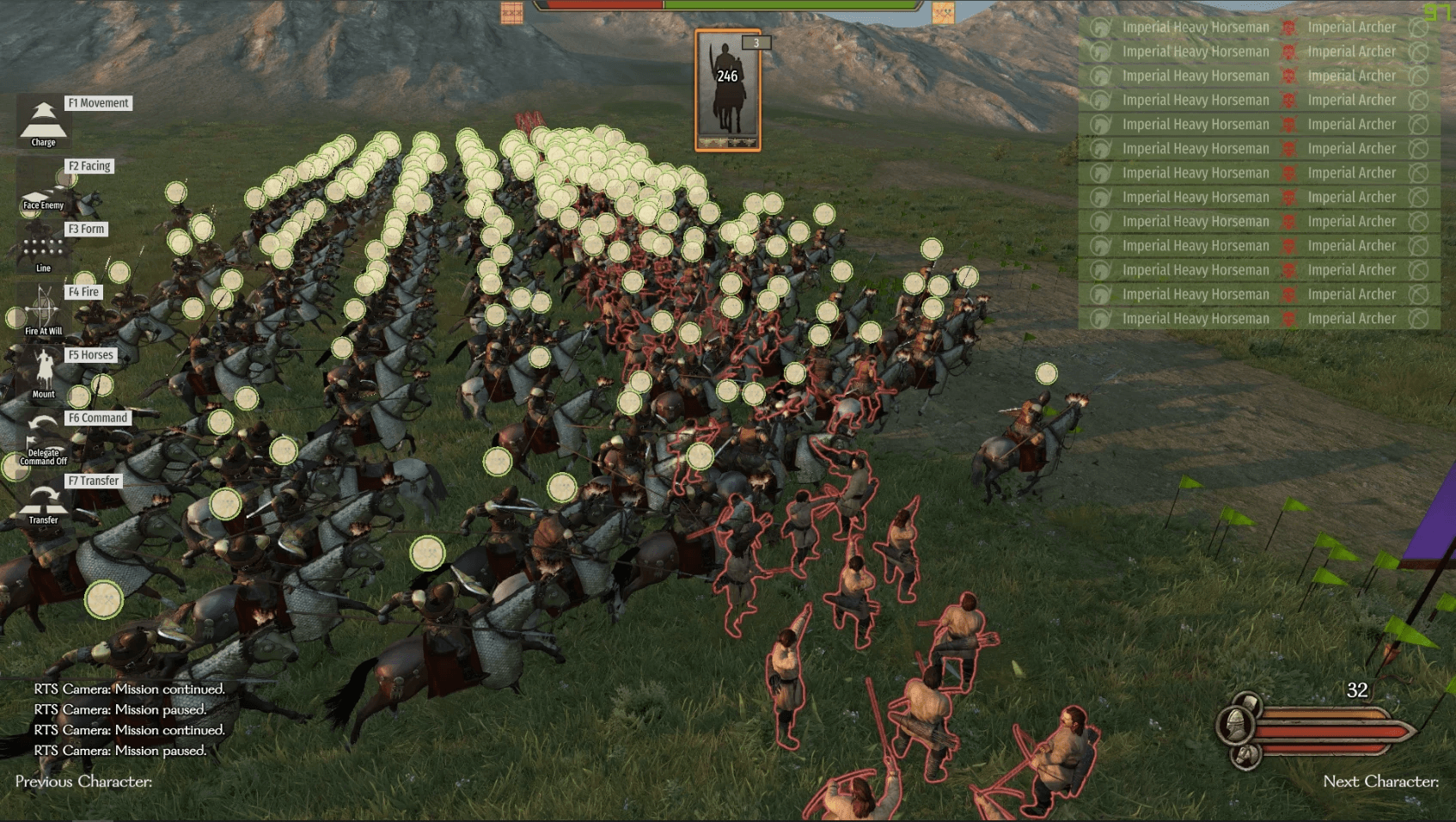
- RTS Camera
- Press F10 to toggle between free camera and normal view. When in free camera, your character will be controlled by AI.
- Press L and check Use Free Camera By Default to automatically start battles in free camera mode.
- Select formations by clicking troop cards. Press Alt to show the cursor, then drag the right mouse button to rotate the camera.
- After your character dies, press FE to follow a soldier. Press FE again to take control of that soldier and continue fighting. Soldiers in the same formation as your character are prioritized.
- To avoid all formations being delegated to AI after death, enable Control Ally After Death in the L menu. This is always enabled in free camera mode.
- When following a character, press FE to take control. You can make the camera follow characters in different ways:
- In free camera, press FE to follow your own character.
- Open the menu with L, then choose a hero from the Watch Another Hero dropdown.
- Press ;, click a character, then press FE.
- Use left/right mouse buttons to switch between followed characters.
- If your character is injured on the campaign map and you encounter enemies, you can select “Watch the battle”. You’ll command your troops in free camera, but cannot directly fight.
- Use [ to pause or ' to adjust time speed.
- Toggle HUD with ]. If you forget the key after rebinding, press HOME to enable HUD.
- Press F10 to toggle between free camera and normal view. When in free camera, your character will be controlled by AI.
- Command System
- To order a formation to charge a specific enemy formation, click the middle mouse button on the target formation instead of using F1 + F3.
- The enemy formation you’ve targeted will appear with a red outline in the command panel.
- AI enemies can also target specific formations. If your formation is being targeted, it will appear with a dark blue outline.
- Ranged weapons cannot be restricted to a specific formation. Use Hold Fire when needed (e.g., with javelins).
- Disable this feature anytime by unchecking Enable Attack Specific Formation in the L menu.
- Select your formations by middle-clicking soldiers. Selected troops will be outlined in green.
- Disable this by unchecking Middle Click to Select Formation in the L menu.
- Rebind hotkeys through L > Config Key.
- Settings are saved automatically.
- To order a formation to charge a specific enemy formation, click the middle mouse button on the target formation instead of using F1 + F3.
Details
- Press L to open the mod menu in a scene. All options can be adjusted there.
- Close the menu with Esc, or by clicking outside/right-clicking.
- Free camera controls:
- W, A, S, D, Space, Z, middle mouse button → Move the camera.
- Shift → Speed up camera movement.
- Mouse movement → Rotate camera. When the order panel is open, drag right mouse button to rotate.
- Left click + drag → Adjust position, direction, and width of a selected formation.
- Ctrl + drag → Arrange multiple formations vertically.
- Ctrl + scroll → Adjust camera speed.
- Ctrl + middle-click → Reset camera speed.
- Ctrl + drag middle mouse vertically → Adjust camera height.
- Config files are saved in:
- *(user directory)\Documents\Mount and Blade II Bannerlord\Configs\RTSCamera*
- Main settings: RTSCameraConfig.xml
- Hotkeys: GameKeyConfig.xml

Comments (1)
Log in to post a comment.
🔥